Codection
How to sync stock between two (or more) WooCommerce stores
Keep stock in sync between WooCommerce stores: one store instead of two, CSV export and import, an external inventory system, or real time sync with WooCommerce Sync. Pros, cons and step by step setup.
A physical shop with its own online store. Two brands that sell the same products. A central warehouse that supplies the stores of several franchises. If the same products are sold in more than one WooCommerce store, sooner or later it happens: the last unit is sold in one store, the other one keeps showing it in stock, and you have sold something you do not have.
WooCommerce does not do this by itself: every store has its own stock. In this guide we compare the four ways to keep stock in sync between WooCommerce stores, with their pros and cons, and we explain step by step how to set up real time sync between independent stores.
The short answer: if you only have two stores because of languages or currencies, one store can do it and then there is nothing to sync; if stock changes now and then, update it with a CSV file; if you also sell on marketplaces and already pay for an inventory system, let it manage the stock; and if you have independent stores that sell the same products every day, use a sync plugin like WooCommerce Sync.
| Option | Best for | Main limitation |
|---|---|---|
| One store instead of two | Stores that only differ in language, currency or country | Not possible if they are different businesses or brands |
| Export and import a CSV | Stock that changes a few times a week | Never in real time, and one direction |
| External inventory system | Businesses that also sell on marketplaces | Monthly fee, and your data goes through a third party |
| WooCommerce Sync | Independent stores that sell the same products | A premium plugin installed in every store |
Option 1: one store instead of two
Before syncing anything, ask yourself why you have two stores. Many people open a second store to sell in another language, in another currency or in another country. One WooCommerce store can do all of that with a multilingual plugin and a multi-currency plugin (for example, WPML with WooCommerce Multilingual & Multicurrency): a translated product is the same product, and the stock is shared by design.
It is the best solution when it fits, because there is nothing to keep in sync. But it does not fit when the stores are really different: two brands with their own design and domain, a franchise that runs its own store, or a store that is managed by another company.
Option 2: export and import the stock with a CSV file
WooCommerce includes a product exporter and importer that can update existing products. To copy the stock from one store to another:
- In the first store, go to Products > All products > Export and export only the columns SKU and Stock.
- In the second store, go to Products > All products > Import, choose the file and check Update existing products. Products are matched by SKU.
It is free and it works for stock that changes slowly. But it has the problems of any file:
- Stock is updated when you import, not when you sell. Between two imports, both stores can sell the last unit.
- It goes in one direction: if both stores sell, the file of one of them overwrites the sales of the other.
- Someone has to remember to do it, every day, in every store.
Option 3: an external inventory system
Inventory management services and ERPs keep the stock in their own platform and send it to every sales channel: your WooCommerce stores, but also Amazon, eBay or a physical point of sale. If you sell in many channels, or you already use an ERP for invoicing and purchases, it makes sense that it is the one that rules the stock.
If you only need to keep two or three WooCommerce stores in sync, it is usually too much:
- A monthly fee, often based on the number of orders, products or channels.
- Your products, customers and orders go through a third party’s servers.
- Many of them sync every few minutes, not when the sale happens, and you depend on the service being up.
Option 4: sync stock in real time with WooCommerce Sync
For independent stores that sell the same products, we have made WooCommerce Sync. The stores talk to each other directly through the WooCommerce REST API, with no service in the middle, and every stock change is sent to the rest of the stores as soon as it happens.
How it works
The stores form a network with one server and one or more clients. The server is one of your stores (it sells like the others), and it is in charge of passing on the changes:
- When the stock changes in a client, the client sends it to the server, and the server sends it to the rest of the clients.
- When the stock changes in the server, the server sends it to all the clients.
- The store where the change was made never receives it back, so there are no loops.
Products are matched by SKU: the product with SKU TSHIRT-RED-M in one store is the product with SKU TSHIRT-RED-M in the others, even if the IDs, the names or the prices are different. It works with simple products and with every variation of a variable product.
Every stock change is sent, whatever made it: an order, a cancelled or refunded order that restores the stock, an edit in the product page, the WooCommerce REST API (a point of sale or an ERP connected to the store), a CSV import or WP-CLI. Changes go out through a queue processed in the background by Action Scheduler, the same system WooCommerce uses for its own tasks, and usually reach the other stores in a minute or less.
What you need
- WooCommerce and WooCommerce Sync installed in every store. The stores can be on different servers, hostings and domains.
- The same SKU for the same product or variation in every store, and Manage stock enabled in the products you want to sync.
- HTTPS, and a REST API that is not blocked by a security plugin or a firewall.
- WordPress cron working, or better, a real cron job on the server, so the queues are processed even when nobody visits the store.
Step by step setup
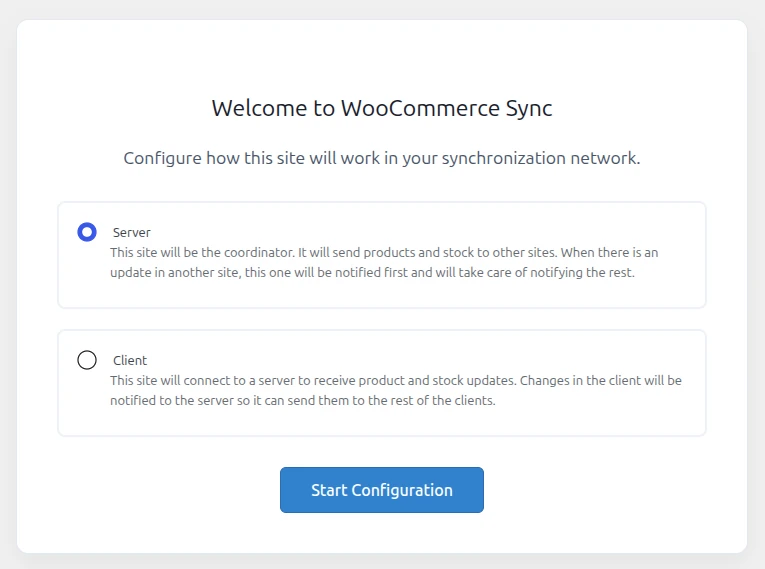
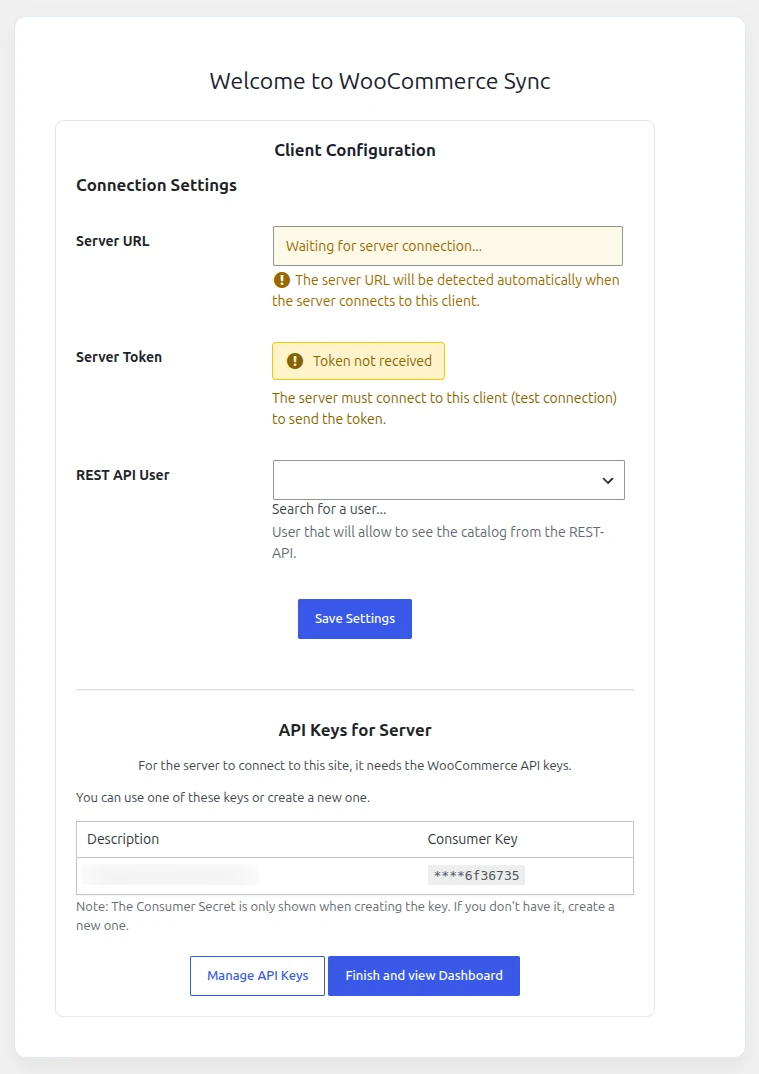
1. Choose the role of every store. When you activate the plugin, an assistant asks if that store will be the server or a client. Choose as server the store that is always up and is managed by you: usually the main store or the one with the central warehouse.
2. Prepare every client. In the client configuration, choose the REST API user: an administrator or shop manager that will be used to read the catalog. Then, in WooCommerce > Settings > Advanced > REST API, create a key with Read/Write permissions for that same user and copy the Consumer key and the Consumer secret (the secret is only shown once).
3. Add the clients in the server. In the WooCommerce Sync page of the server, add a row for every client with its URL, Consumer key and Consumer secret, and click Test connection. The test checks the keys and, at the same time, gives the client its own secure token to send changes to the server. The client detects the server by itself: you do not have to type anything else in it.
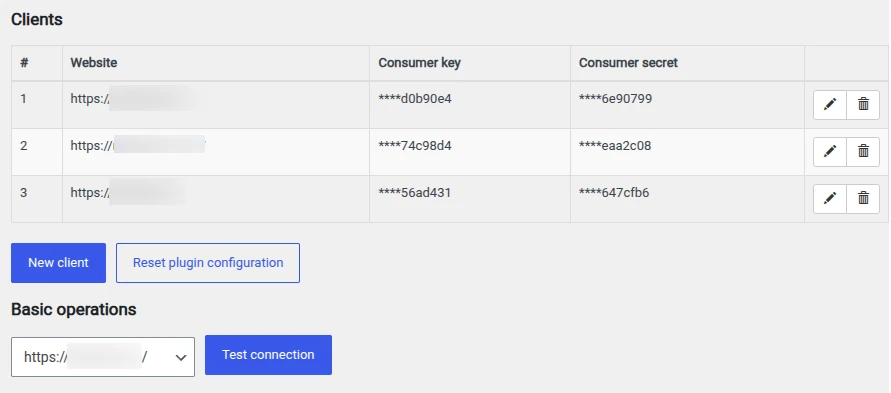
If the test fails, the plugin tells you what to check. The most common error is a 401: the key belongs to a different user than the one chosen in step 2, or a security plugin is blocking the REST API.
4. Check that the catalogs match. Every client gets its own page in the server, with the products side by side:
- Simple products and variable products: local and remote stock of every product and variation, with a green check when they match and buttons to sync the ones that do not.
- Unknown locally: products of the client whose SKU does not exist in the server.
- Unknown remotely: products of the server whose SKU does not exist in the client.
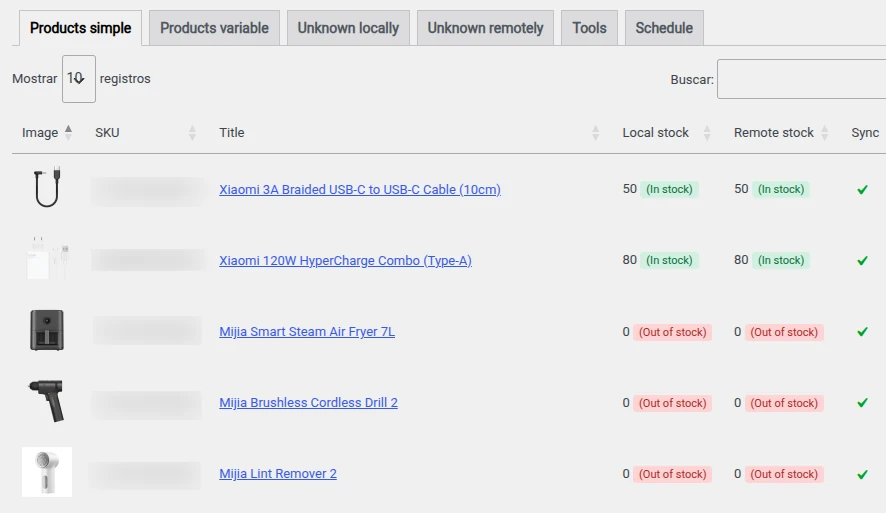
The two “unknown” lists are the place to find typos and products without SKU before you start: a product that does not have the same SKU in both stores is not synced.
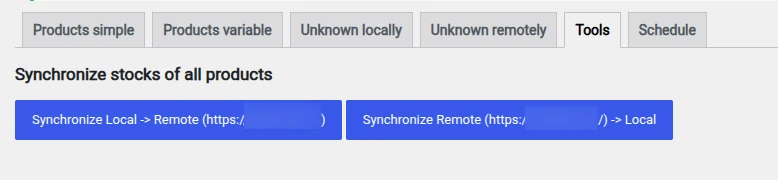
5. Make the first full sync. In the Tools tab, choose which store has the right stock and sync the whole catalog in that direction: Local -> Remote or Remote -> Local. It goes in batches of 10 products, with a progress bar and the result of every product, and you can pause, resume or stop it at any moment. This full sync also copies the stock status and the “Manage stock” setting.
That is all. From then on, every stock change is synced by itself.
Day to day: history, queues and retries
When the stock of a product does not look right, the first question is always “who changed it?”. WooCommerce Sync records every stock change with the previous and the new stock and its exact origin: the order number, the store the change came from, the user who edited the product, a manual sync, the REST API or WP-CLI. You can see it in the product page (and in every variation), and in a general list with search by SKU and a filter by origin. The history is kept for 30 days by default, and you can change it.
And it is built for real stores, where a server can be down for a while:
- Nothing gets lost: if a store does not answer, the change waits in the queue and is retried after 1, 5, 15 and 30 minutes, and 1, 3, 6 and 12 hours, about 22 hours in total. If it still fails, it is marked as failed and a Retry failed button puts it back in the queue.
- Old changes do not overwrite new ones: every product keeps the version of the last change applied, and a change that arrives late or out of order is ignored.
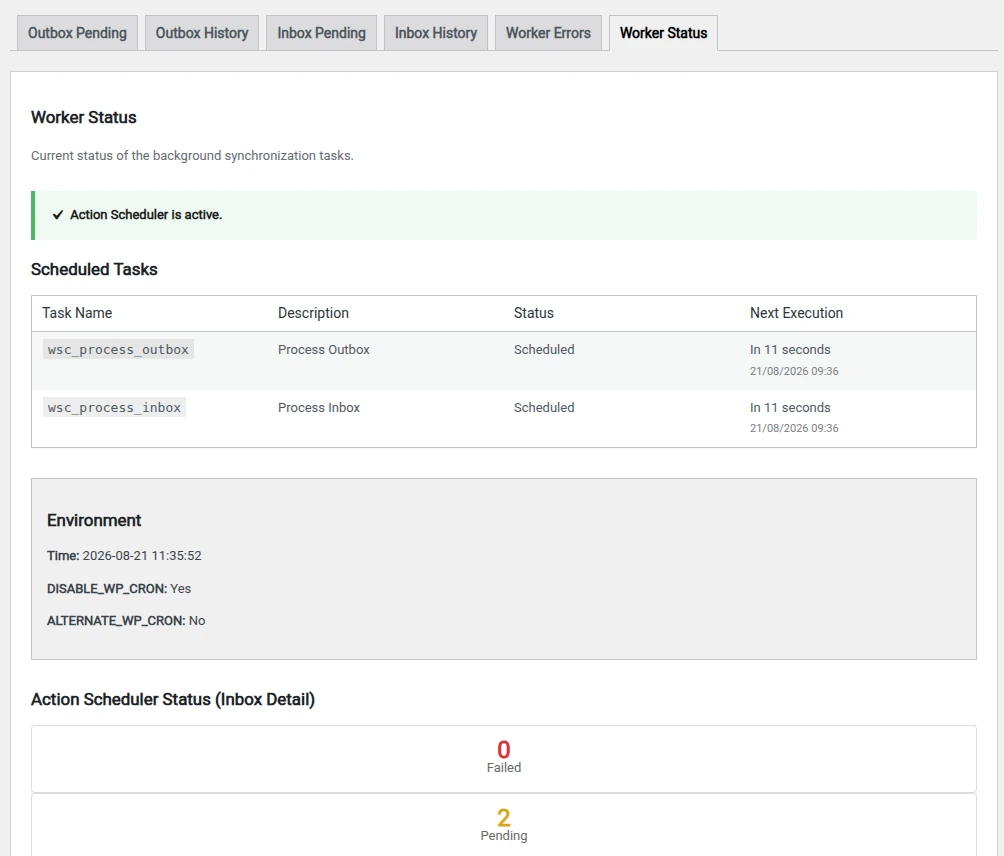
- Everything is visible: the status page shows the outgoing and incoming queues, pending and history, with attempts, next attempt and last error, the scheduled tasks and buttons to process the queues by hand.
- No intermediaries: the server reads the clients with their WooCommerce API keys, and stock changes travel with a token that is different for every client. Your data never leaves your own stores.
What you should know before
- It syncs stock, not products. Prices, descriptions, images and orders stay in every store. Products have to exist in every store with the same SKU (you can create them with a CSV import).
- It sends the resulting stock, not the difference. If the same product is sold in two stores in the same minute, before the first change arrives, the last change wins and the stock can be off by one unit until the next sale or the next manual sync. For most stores this almost never happens; if you sell hundreds of units of the same product every hour in several stores, an inventory system with a single stock is a better fit.
- The clocks of the servers have to be right, because the order of the changes is decided by their time. Hosting servers keep their clock in sync automatically; it is only a problem with servers that you manage yourself.
- Changes made outside WooCommerce are not detected, for example an
UPDATErun directly in the database. For those cases, run a full sync from the Tools tab.
Which option should you choose?
| One store | CSV | Inventory system | WooCommerce Sync | |
|---|---|---|---|---|
| Independent stores and brands | No | Yes | Yes | Yes |
| Stores on different servers | No | Yes | Yes | Yes |
| Real time | Yes | No | Depends on the service | Yes |
| All the stores can sell | Yes | Hard | Yes | Yes |
| Marketplaces and point of sale | Plugins | No | Yes | Through the REST API |
| Stock history | No | No | Yes | Yes, with the origin |
| Your data stays in your stores | Yes | Yes | No | Yes |
| Cost | Plugins | Free | Monthly fee | Premium plugin |
Frequently asked questions
How many stores can I connect?
As many as you need: one server and any number of clients. A change made in any of them reaches all the others through the server.
Do the stores need to have the same products?
No. Only the products with the same SKU in both stores are synced. A store can have products that the others do not sell, and the “Unknown locally” and “Unknown remotely” lists show you which ones they are.
What happens if a store is down?
The changes for that store wait in the queue and are retried for about 22 hours. When it comes back, it receives them, and if a newer change for the same product has arrived in the meantime, the old one is ignored.
Are orders or prices synced too?
No. Every store keeps its own orders, prices and product content. Only the stock is synced in real time.
Does it work with my point of sale or ERP?
If your point of sale or ERP updates the stock of one of the stores through the WooCommerce REST API, yes: WooCommerce Sync detects that change like any other and sends it to the rest of the stores.
Conclusion
If you can sell everything from one store, do it: there will be nothing to sync. If not, the choice is between updating the stock with a file when you remember, paying an external service every month, or letting your own stores keep it in sync in real time with WooCommerce Sync. And if you are not sure which one fits your case, write to us and we will help you.