Codection
How to export WooCommerce customers and WordPress users (to CSV or Excel)
How to export WooCommerce customers and WordPress users to CSV or Excel: what WordPress and WooCommerce include, and how to export everything (addresses, phone numbers, user meta and guests) with a free plugin.

You are moving to a new newsletter tool and you need your customers. Your accountant asks for the list of members. You are migrating the store to a new site. Or you simply want to open your customers in Excel and see who buys. For all of that you have to get your WooCommerce customers, or your WordPress users, into a file.
In this guide we explain what you can export with what WordPress and WooCommerce already include, how to export everything (addresses, phone numbers, user meta and guest customers) with our free plugin, and how to prepare the file for what you are going to do with it.
The short answer: WordPress has no option to export users. WooCommerce lets you download its customers report, which is fine to see names, emails and how much each customer has spent, but it has no phone numbers or full addresses and it cannot be imported again. For a complete file, with all the data of every customer, use the free plugin Import and export users and customers.
| WooCommerce customers report | Import and export users and customers | |
|---|---|---|
| Users who are not customers | No | Yes, of any role |
| Phone and full addresses | No, only country, city, region and postcode | Yes, billing and shipping |
| User meta and fields of other plugins | No | Yes |
| Orders and total spend | Yes | No |
| Guest customers | Yes | Yes, if you check it |
| Choose and rename columns | No | Yes |
| Can be imported in another site | No | Yes, with the passwords |
| Formats | CSV | CSV, and Excel, ODS or XML with an addon |
What WordPress and WooCommerce include
WordPress does not export users. Tools > Export exports posts, pages and other content, but not the users. And Tools > Export Personal Data creates a file with the data of one person, to answer a GDPR request, not a list.
WooCommerce has a customers report in WooCommerce > Customers, with a Download button that exports it to CSV (if the report is big, it is sent to you by email). It has the name, username, email, registration and last active dates, number of orders, total and average spend, and the location: country, city, region and postcode.
It is perfect to know who your best customers are. But it does not have the phone, the address or the company, nor the data saved by other plugins, and its format is not the WordPress one, so you cannot use it to import the customers in another site.
Export all the data with Import and export users and customers
Our free plugin Import and export users and customers has been in the WordPress directory since 2014, is used by more than 70,000 sites and exports any user with all their data: the WordPress fields, the WooCommerce billing and shipping addresses and any user meta saved by other plugins (memberships, courses, custom registration fields…).
Step by step
- Install the plugin from Plugins > Add New, searching for “Import and export users and customers”, and activate it.
- Go to Tools > Import and export users and customers and open the Export tab.
- Choose which users and which data you want (see below), or leave everything as it is to export all the users with all their columns.
- Click Download. If you have many users, the file is prepared in steps and you see the progress until it is downloaded.
Which users to export
- Role: only customers (
customer), only subscribers, or the roles you choose. - Specific users: search by email, username or name and export only those users.
- User created: the users registered between two dates, for example the new customers of last month.
- WooCommerce guest customers: the customers who bought without creating an account, one row per email, with the billing and shipping data of their last order. Emails that already belong to a registered user are not repeated. If you import the file later, each of them gets an account.
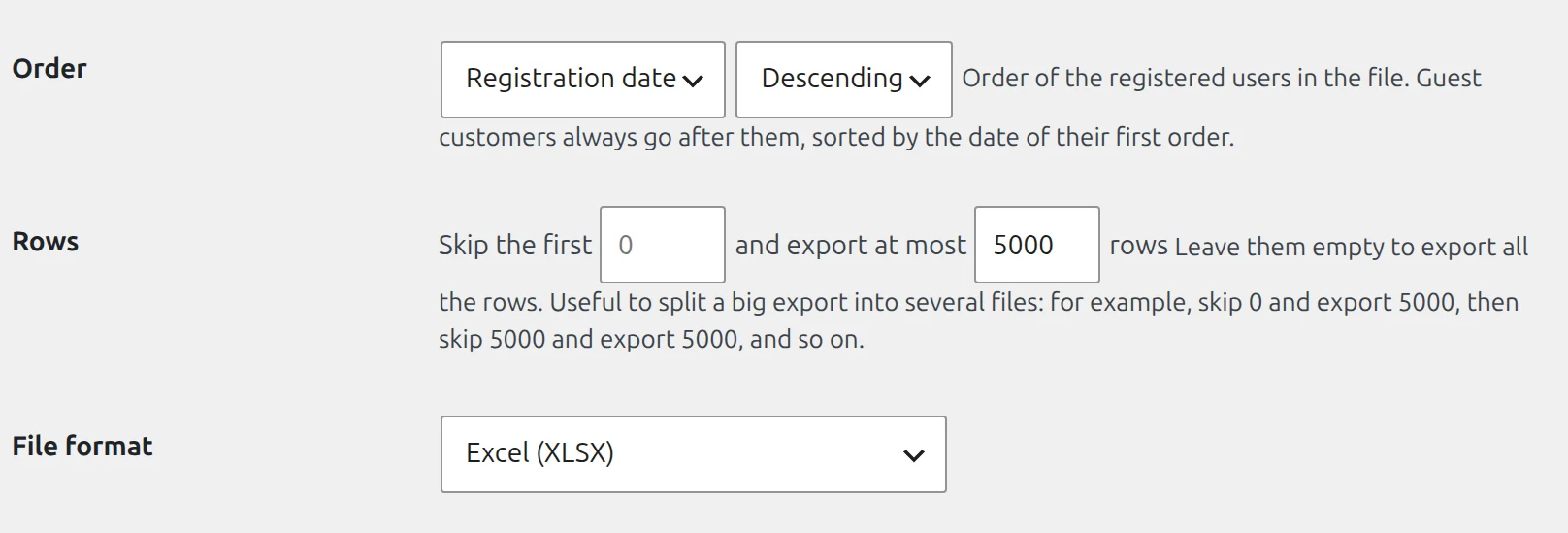
- Rows: for very big stores, skip the first rows and export at most a number of rows, so you can split the export into several files (0 to 5,000, 5,000 to 10,000…).
Which data, and in which order
In Columns, choose All columns to export everything, or Choose columns to check only the ones you want, drag them to change their order and write the name each one will have in the file. The WooCommerce columns start with billing_ and shipping_: billing_phone, billing_address_1, billing_city, billing_postcode, billing_company…
If you prefer, with Edit as text you can write them separated by commas, renaming them with =>:
user_email=>Email,first_name=>First name,last_name=>Last name,billing_phone=>Phone,billing_city=>CityAnd the rest of the options of the file:
- Order: by username, ID, email, display name or registration date, ascending or descending.
- File format and Delimiter: CSV with comma, semicolon, colon or tab. With the File Formats addon, also Excel (XLSX), OpenDocument (ODS) and XML.
- Convert timestamp data to date format: dates saved as numbers are exported as readable dates, in the format you choose.
- Display serialized arrays as comma-separated lists of values and Double encapsulate serialized values: so the data saved as lists can be read in a spreadsheet.
- Export password hashes: only if you are going to import the users in another WordPress and you want them to keep their password.
Click Save Settings if you are going to repeat the same export: next time everything will be as you left it. And every export is saved in Log > History, with the filters you used and the number of rows.
How to prepare the file for what you need
To open it in Excel
If everything appears in one column when you open the CSV in Excel, it is because of the delimiter: in many countries Excel expects a semicolon instead of a comma. Export with Delimiter set to semicolon, or directly in XLSX format with the File Formats addon, and you will not have to convert anything. The plugin also protects the file: if a cell starts like a formula, it changes it so the spreadsheet does not run it, and tells you which values were changed.
For a newsletter tool or a CRM
Export only the columns the tool asks for and give them the names it expects (Email, First name, Last name…), so the matching is immediate when you import them. Before uploading them, make sure your customers agreed to receive your emails: having them in the store is not the same as having them subscribed.
To move the customers to another site
Export all the columns with Export password hashes checked. In the new site, import the file with the same plugin and, in the import assistant, match the user_pass column as password hash: your customers will log in with the password they already had, with their addresses and their data. Orders do not travel in this file: they are migrated separately.
To get it every day or every week
If you need the same file again and again, you do not have to export it by hand. With the Recurring Export addon you schedule the export and the file arrives by itself in a folder, an FTP or SFTP server or your inbox. We explain it step by step in how to export WordPress users automatically.
Frequently asked questions
Are the passwords of the customers exported?
Never the password itself, because WordPress does not save it: it saves an encrypted hash. If you check Export password hashes, that hash is exported, so the customers keep their password when you import them in another WordPress. If you do not need it, leave it unchecked.
Can I export the customers who bought without an account?
Yes, with the WooCommerce guest customers option. They go after the registered users, one per email, with the data of their last order.
What about the orders?
This plugin exports users and customers, not orders. For a list of orders, WooCommerce > Analytics > Orders also has a Download button.
Is the data of other plugins exported?
Yes, everything those plugins save as user meta: custom registration fields, membership data, preferences… They appear as columns named after their meta key.
I have tens of thousands of customers, will it work?
Yes. The export is done in steps so the server does not run out of time, and if you still prefer smaller files, use Rows to split it.
Conclusion
To see who buys and how much, the WooCommerce customers report is enough. To really have your customers in a file, with all their data, ready for Excel, your CRM or another site, use the free plugin Import and export users and customers. And if you have any question, write to us.