Codection
How to import and export WordPress users with WP-CLI
Import and export WordPress users and WooCommerce customers from the command line with all their data: user meta, WooCommerce addresses and the fields of your plugins, columns matched automatically and a dry run before importing.
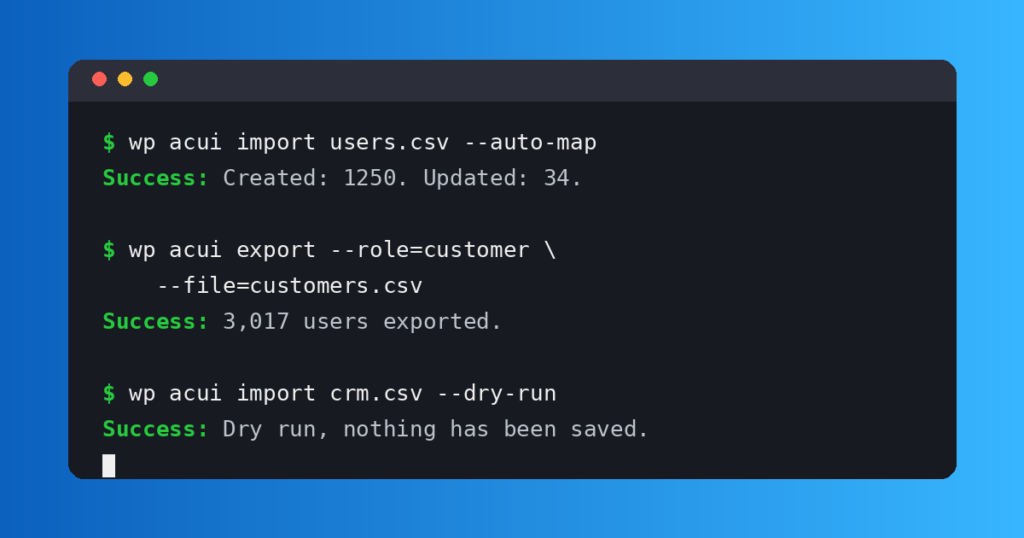
The import screen is fine for a file now and then. But when the file has 50,000 users, when the import has to run after a deployment, or when you manage twenty sites from the terminal, a browser tab is the last thing you want. You want one command.
WordPress comes with some WP-CLI commands for users, but they only handle the basic fields. In this guide we explain what each option can do, and how to import and export users with all their data from the command line: user meta, WooCommerce addresses and the data of your plugins, with the same engine as the import screen of our free plugin.
The short answer: if you only need the username, email, name and role, the commands of WordPress (wp user import-csv and wp user list) are enough. If you need everything else, install the free plugin Import and export users and customers (version 3.2 or newer) and use wp acui import and wp acui export.
| What you need | WordPress commands | wp acui |
|---|---|---|
| Username, email, name and role | Yes | Yes |
| Any user meta | No | Yes |
| WooCommerce billing and shipping addresses | No | Yes |
| Columns with any name, matched automatically | No | Yes (--auto-map) |
| Check the file without saving anything | No | Yes (--dry-run) |
| Delete or change the role of users not in the file | No | Yes |
| Excel, LibreOffice and XML files | No | With the File Formats addon |
What WordPress can do by itself
wp user import-csv creates and updates users from a CSV file with the columns user_login, user_email, display_name and role, and wp user list lists them in CSV format:
wp user import-csv users.csv
wp user list --fields=user_login,user_email,display_name --format=csv > users.csv
For a quick list or a handful of new users it is perfect. But the phone, the company, the billing address, the membership level or any other field saved as user meta is left out, and the columns must have exactly those names.
The wp acui commands
Since version 3.2, our free plugin Import and export users and customers adds these commands. Install it like any other plugin (or with wp plugin install import-users-from-csv-with-meta --activate) and you have:
| Command | What it does |
|---|---|
wp acui import | Imports users from a file or a URL |
wp acui export | Exports users to a file or to the standard output |
wp acui columns | Lists the columns you can use, including the ones of your plugins |
wp acui history | Shows the latest imports and exports |
wp acui cron run | Runs the recurring import now, in one go |
wp help acui import shows every option. The commands run as the user you choose with --user; without it, they use the first administrator and tell you so.
Import users from the command line
The simplest import is a CSV with a column for the username and another for the email. Every other column is saved: WordPress fields like first_name or role, WooCommerce fields like billing_phone, and any other column as user meta with its name:
wp acui import users.csv --role=subscriber
Success: Created: 1250. Updated: 34. Deleted: 0. Ignored: 0.
The file can also be a URL, for example a Google Sheets document published as CSV. The most useful options:
--update-existing=no: create the new users and leave the ones that already exist as they are.--update-roles=yesor--update-roles=yes_no_override: replace the roles of existing users, or add the new ones.--empty-cells=delete: an empty cell deletes the old value instead of leaving it.--send-email: send the email you designed in the plugin to the new users. Without it, nobody gets an email.--delete-not-presentor--change-role-not-present=<role>: the file is the list of active users, so the ones who are not in it are deleted or moved to another role. Administrators are never touched, and nothing is deleted if the import had errors or warnings.
Files with their own column names
Files exported from a CRM, another platform or a spreadsheet rarely have WordPress column names. With --auto-map, the command matches the columns like the import assistant of the plugin does, in several languages, and shows you what it decided before importing:
wp acui import crm-export.csv --auto-map --map="Internal notes=__skip"

column          import_as         match
Username        user_login        suggested
E-mail          user_email        suggested
First name      first_name        suggested
Phone           billing_phone     suggested
City            billing_city      suggested
Internal notes  (skipped)         manual
With --map you choose the field of any column by hand ("Correo=user_email,Notes=__skip"), and the rest keep their name or are guessed with --auto-map.
Check the file before importing it
--dry-run goes through the whole file and tells you what would happen with each row, without creating or changing anything: users that would be created or updated, emails that are not valid, roles that do not exist, rows repeated in the file, and the problems detected by the addons, like an option that does not exist in a profile field:
wp acui import crm-export.csv --auto-map --dry-run

row  type     message
3    warning  Ultimate Member: "Design" is not an option of "Industry"
7    error    Invalid email "maria@"
Success: Dry run, nothing has been saved. Would be created: 1198. Updated: 34. Skipped: 0. With errors: 1.
Export users from the command line
wp acui export exports all the users with all their meta data, or only what you choose:
wp acui export --file=users.csv
wp acui export --role=customer --columns=user_email,first_name,billing_city --file=customers.csv
wp acui export --from=2026-01-01 --delimiter=SEMICOLON > new-users.csv
Without --file, the file is written to the standard output, so you can send it to another command, compress it or upload it to another server. You can filter by role, by user IDs and by registration date, choose the columns and their order, the delimiter, the order of the users and the format of the dates, and include the guest customers of WooCommerce. With the File Formats addon, --format=xlsx, ods or xml are also available.
The exported file uses the same columns the import understands, so moving users between two sites is two commands:
wp acui export --file=users.csv --path=/var/www/old-site
wp acui import users.csv --path=/var/www/new-site
Automate it with a cron job
A cron job of the server can run any of these commands. For example, import the file your ERP leaves every night and export the new customers every Monday:
30 2 * * * cd /var/www/site && wp acui import /data/erp/users.csv --update-roles=yes
0 7 * * 1 cd /var/www/site && wp acui export --role=customer --from="$(date -d '7 days ago' +\%F)" --file=/backups/new-customers.csv
If you configured the recurring import in the plugin, wp acui cron run runs it now in one go, with its file and settings. It is useful to launch it from the crontab of the server instead of depending on the visits that WP-Cron needs.
No SSH access, or you prefer to set it up from the WordPress dashboard? The Recurring Import and Recurring Export addons schedule as many imports and exports as you want, from files, URLs, FTP or SFTP, and send the result by email.
With your plugins and addons
The commands use the same engine as the import screen, so everything the plugin and its addons do also works from the terminal: WooCommerce, BuddyPress, LearnDash, Ultimate Member, Paid Memberships Pro and the other integrations. wp acui columns lists the columns available on your site, including the ones added by your plugins, so you know which header each field needs. And every import and export made with WP-CLI is saved in the history of the plugin, next to the ones made from the dashboard, and can be listed with wp acui history.
Frequently asked questions
Will my users receive an email when I import them?
No. The import does not send any email unless you add --send-email (and --send-email-updated for the users that already existed).
Is there a limit of rows?
From the terminal there is no 30-second limit like in web requests, so the whole file is imported in one go, with a progress bar. The time depends on your server and on the plugins that act when a user is created or updated.
Can I keep the passwords when moving users to another site?
Yes. The export includes the password hash in the user_pass column, and the import saves it as it is, so users keep logging in with the same password. If you do not want to export them, add --no-password-hashes.
Can I import Excel files?
Yes, with the File Formats addon, which adds XLSX, XLS, ODS and XML files to the import and the export, also from WP-CLI.
Does it work on multisite?
Yes. Choose the site with the --url parameter of WP-CLI, and the users are imported into that site.
Conclusion
The commands of WordPress are enough for the basic fields. For everything else, wp acui import and wp acui export give you the complete import and export of Import and export users and customers in the terminal: any column, columns matched automatically, a dry run before touching anything, and scripts and cron jobs that do the work for you.