Codection
How to import users into a WordPress Multisite network (with different data and roles on each site)
How users work in a WordPress Multisite network and the four ways to import them: by hand, WP-CLI, a CSV with the blogs column, or the Multisite addon to keep different data and roles on each site.
A company with one site per branch. A university with a site per faculty. An agency that hosts the sites of its clients in one network. WordPress Multisite is great for all of them, until you need to import hundreds of users: a CSV file that works on one site suddenly overwrites the data of another one, and every user ends up with the same role everywhere.
In this guide we explain how users work in a Multisite network, compare the four ways to import them, and show step by step how to keep the data of each site apart and give each user the right role on each site.
The short answer: for a few users, add them by hand from the Network Admin; for a script, use WP-CLI; to import a CSV into one or several sites with the same role, the free Import and export users and customers is enough; and if each site needs its own data and roles, or you want to export the whole network in one file, use the Multisite addon.
| Option | Best for | Main limitation |
|---|---|---|
| By hand from the Network Admin | A few users | One by one |
| WP-CLI | Developers with server access | Scripts, and the data is still shared by the network |
| Free plugin with the blogs column | Importing a CSV into one or several sites | Same role on every site, and every column is shared by the network |
| Multisite addon | Data and roles that are different on each site | A premium addon |
How users work in a Multisite network
This is the key to everything else. A Multisite network has one list of users for the whole network: the tables wp_users and wp_usermeta are shared by every site. A user exists once, and then is added to one or more sites.
- Roles are per site: WordPress saves them in a meta key with the prefix of each site (
wp_2_capabilities,wp_3_capabilities…), so the same user can be an editor on one site and a subscriber on another. - Everything else is shared: first name, phone, department, any custom field. If the London site imports “department = Sales” and the Paris site imports “department = Design” for the same user, the second import overwrites the first one, and both sites show “Design”.
- Plugins that need data per site save it with the prefix of the site too (
wp_3_department), but a normal import does not know that.
So importing users into a network raises two questions that a single site never has: which sites does each user join, with which role, and which data belongs to the whole network and which to one site.
Option 1: add users by hand from the Network Admin
In Network Admin > Users > Add New User you create a user for the network, and then add it to each site from Users > Add Existing User of that site, with the role you want. Site administrators can add existing users to their site, and they can also create new ones if the network administrator enables “Allow site administrators to add new users” in the network settings.
It is perfect for a handful of people. For a whole team, a list from a CRM or the users of another site, it is not realistic.
Option 2: WP-CLI
If you have access to the server, WP-CLI can import a CSV into one site of the network with --url, and add or change roles site by site:
wp user import-csv users.csv --url=example.com/london/
wp user set-role emma author --url=example.com/london/
wp user remove-role liam --url=example.com/paris/
It is fast and can be automated, but you have to prepare a file and a command for each site, and the custom fields of the file are still saved for the whole network.
Option 3: the free plugin with the blogs column
Import and export users and customers works on Multisite. Import the file from any site and the users join that site; add a column called blogs with the IDs of the sites (2,3) or the word all, and they are added to those sites too:
Username,Email,first_name,role,blogs
emma,emma@example.com,Emma,author,"2,3"
liam,liam@example.com,Liam,subscriber,all
It also works from the frontend form, so the administrator of each site can import their own users with the shortcode, and in scheduled imports. The limits are the ones of the network itself:
- Each user gets the same role on every site of the row.
- Every column is saved for the whole network: two sites importing the same field overwrite each other.
- The blogs column only adds users to sites; it does not remove them.
If none of that is a problem for you, this is all you need.
Option 4: the Multisite addon
The Multisite addon adds what a network needs on top of the free plugin. Let us see it with an example: a network with a head office (site 1) and two branches, London (site 4) and Paris (site 5). Every branch imports its staff with the same template, and each one has its own departments and employee IDs.
1. Decide which fields belong to each site
In the new Multisite tab of each site you list the fields that the site keeps for itself. The network administrator can also add rules for every site of the network: here, department and employee_id are saved for the site where each import runs.
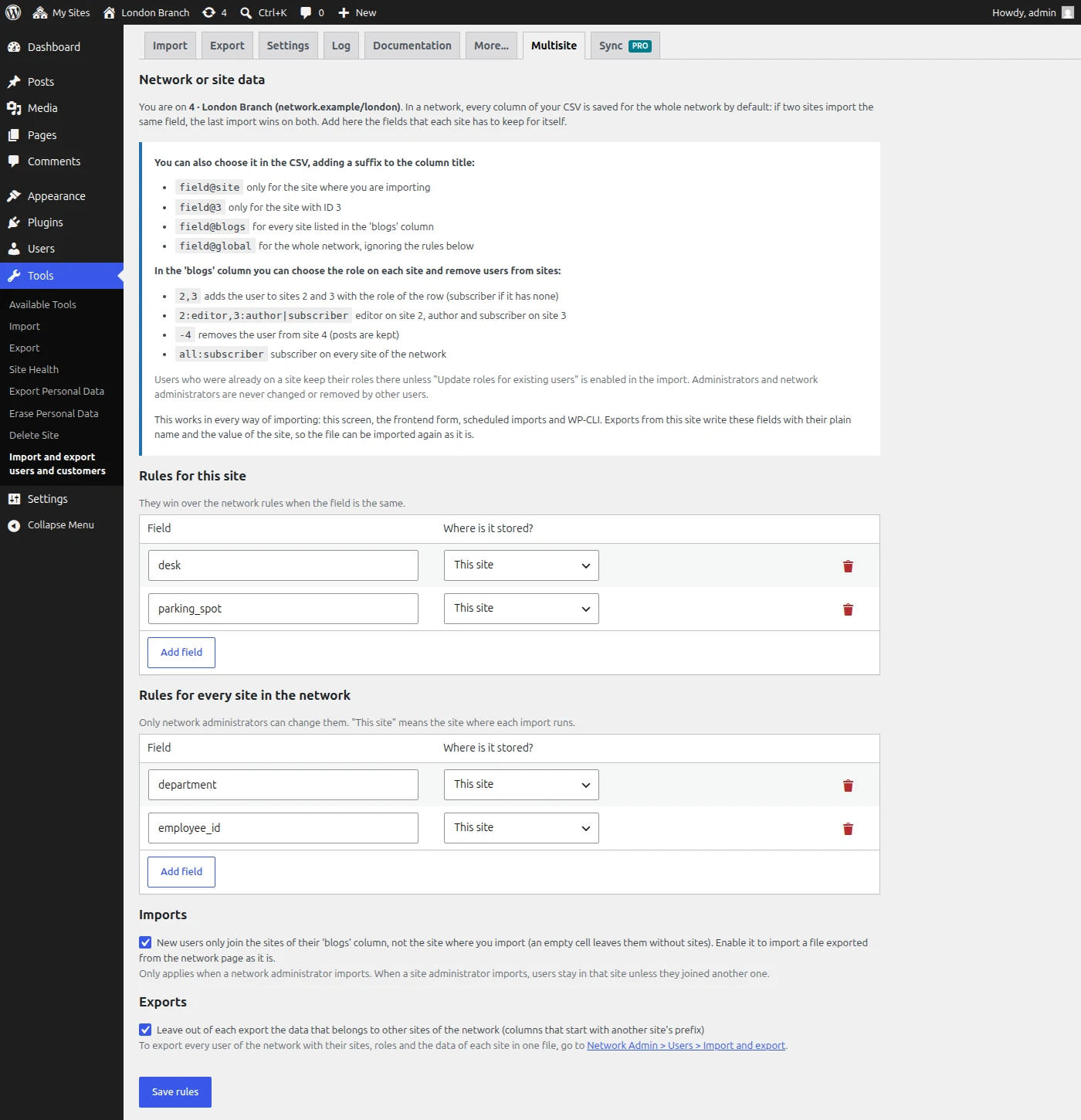
Now London and Paris can import the same template, Username,Email,department,employee_id, and each value stays in its own site. It works in every way of importing: the import screen, the frontend form, scheduled imports and WP-CLI. If you prefer to choose it in the file, add a suffix to the column title instead: department@site (the site where you import), department@4 (site 4), department@blogs (the sites of the blogs column) or department@global (the whole network).
2. Give each user the right role on each site
The blogs column learns a few new tricks:
blogs
1:editor,4:author             editor on site 1, author on site 4
4:subscriber,5:author|contributor
-5                             removes the user from site 5
all:subscriber                 subscriber on every site
Users who were already on a site keep their roles there unless you enable “Update roles for existing users?” in the import, and the roles of administrators and network administrators are never changed by other users.
3. Export the whole network in one file
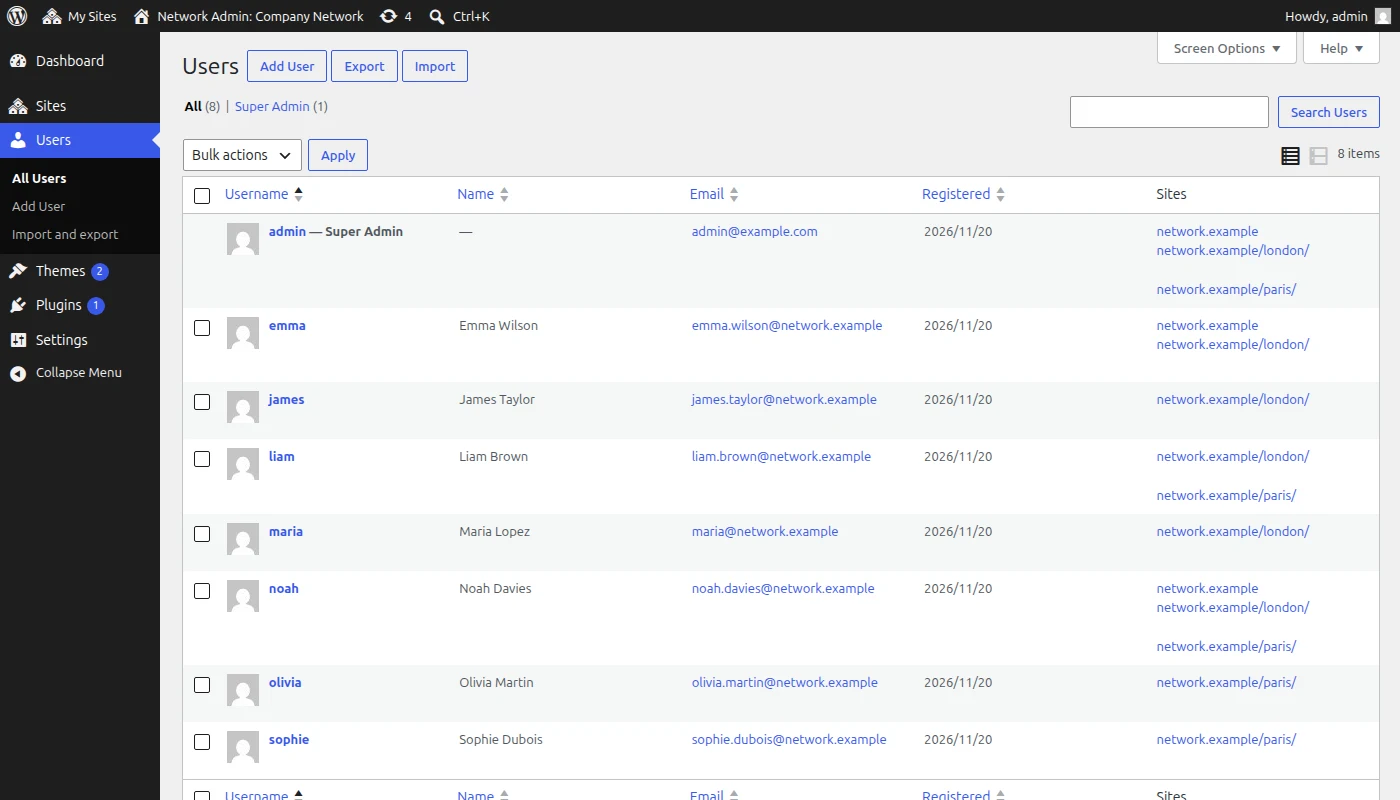
A new page in Network Admin > Users > Import and export exports every user of the network, one row per user, with the sites and roles of each one and the data of every site in its own column:
Username,Email,blogs,department@4,department@5,employee_id@4
noah,noah@example.com,"1:subscriber,4:editor,5:author",Operations,Operations,L-1004
olivia,olivia@example.com,5:editor,,Design,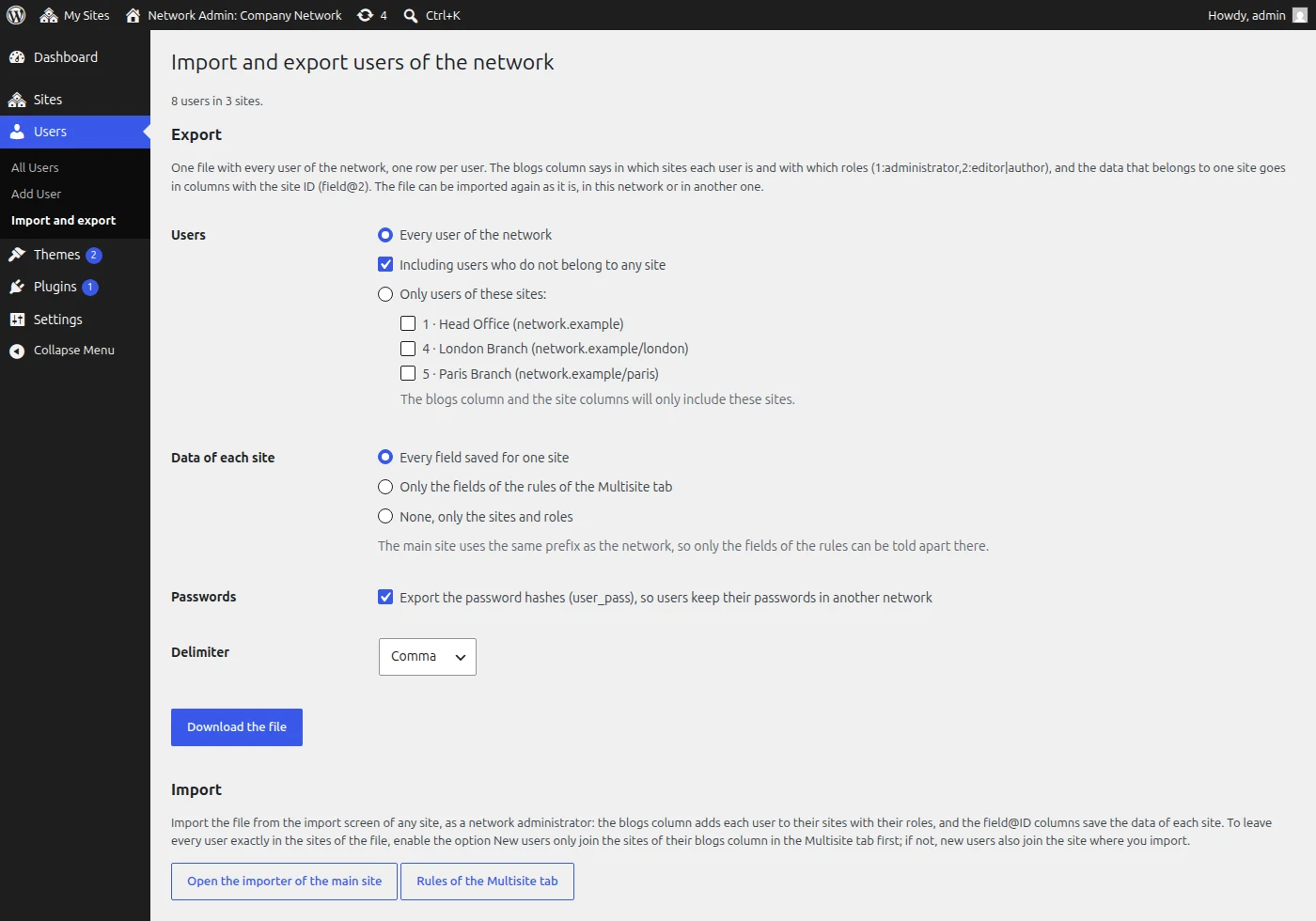
You can export every user or only the users of some sites, with or without password hashes. Import that file in another network, with the option “New users only join the sites of their blogs column” enabled in the Multisite tab, and every user lands in the same sites, with the same roles, data and passwords. It is also a handy backup, and a spreadsheet to review who is where.
What the addon does not do
- On the main site of the network, fields saved only for that site use the same prefix as the network, so the export can only tell them apart if they have a rule.
- A site administrator only writes data and roles in the sites where they can manage users; anything else is skipped and listed in a notice after the import.
- It does not sync users between separate installations: for that, see how to sync users between WordPress sites.
Comparison
| By hand | WP-CLI | Free plugin | Multisite addon | |
|---|---|---|---|---|
| Import from a CSV or Excel file | No | Yes | Yes | Yes |
| Add users to several sites | One by one | One command per site | Yes (blogs column) | Yes |
| Different role on each site | Yes | With several commands | No | Yes |
| Remove users from sites | Yes | Yes | No | Yes |
| Different data on each site | No | No | No | Yes |
| Site administrators import their own users | Yes | No | Yes | Yes |
| Export the whole network in one file | No | No | No | Yes |
| Cost | Free | Free | Free | Premium addon |
Frequently asked questions
Are users shared between the sites of a network?
Yes. There is one list of users for the whole network, and each user is added to the sites you want, with a role on each one. Their name, email, password and custom fields are shared too, unless they are saved for one site.
Can the administrator of each site import their own users?
Yes, from the import screen of their site or with the frontend form. With the Multisite addon, they only write data and roles in the sites where they can manage users.
Can I move the users of a normal site into a network?
Yes. Export them from the old site with the free plugin and import the file in the network, adding a blogs column to choose the sites and roles. Password hashes are kept, so users log in with the same password.
Do I have to activate the plugin in the whole network?
The free plugin can be activated in the sites where you import or in the whole network. The Multisite addon is activated in the whole network, because its export page lives in the Network Admin.
Conclusion
For a few users or a one-off script, WordPress and WP-CLI are enough. To import a CSV into one or several sites of a network, start with the free Import and export users and customers. And when each site needs its own data and roles, or you want the whole network in one file, the Multisite addon takes care of it. If you are not sure which one fits your case, write to us and we will help you.