Codection
How to export WordPress users automatically (CSV, Excel, FTP or email)
Export WordPress users and WooCommerce customers on a schedule: by hand, WP-CLI and cron, automation services or the Recurring Export addon. Step by step setup with FTP, SFTP and email.

Your CRM needs the new customers of the store every morning. The accounting department wants a list of members every week. You want a backup of your users in a server that is not the one of your website. Exporting users once is easy; the problem is doing it again and again, and someone having to remember it.
WordPress does not export users by itself, and much less on a schedule. In this guide we compare the four ways to export WordPress users and WooCommerce customers automatically, and we explain step by step how to schedule exports with the file in your server, in an FTP or SFTP server, or in your inbox.
The short answer: if you only need a file now and then, export it by hand with our free plugin; if you are a developer with SSH access, WP-CLI and a cron job of the server can do it; if what you need is to send every new user to another app the moment they register, use an automation service; and if you need a complete file, with meta data and WooCommerce data, every day or every week, schedule it with the Recurring Export addon.
| Option | Best for | Main limitation |
|---|---|---|
| Export by hand | A file now and then | Someone has to do it every time |
| WP-CLI and a cron job | Developers with SSH access | Sending the file to FTP or email is up to you |
| Automation services | Sending every new user to another app | One user at a time, not files, and a monthly fee |
| Recurring Export addon | Complete files on a schedule, to a folder, FTP, SFTP or email | A premium addon |
Option 1: export the users by hand
Our free plugin Import and export users and customers exports all the users, with all their meta data and the WooCommerce billing and shipping addresses, from Tools > Import and export users and customers > Export. You can choose the roles, the columns, the dates and the format, and download the file.
For a migration or a report once a month, it is all you need. But if the file has to be ready every day, someone has to log in, export, download it and send it to whoever needs it. The day that person is on holidays, there is no file.
Option 2: WP-CLI and a cron job of the server
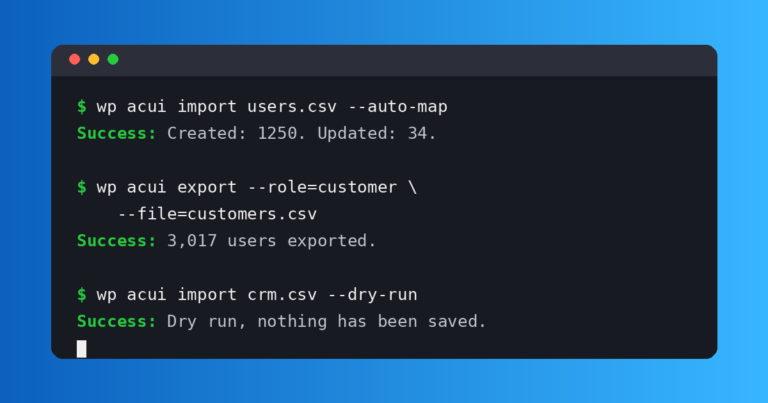
If you have SSH access, WP-CLI and a cron job of the server can export the users every night. The command of WordPress, wp user list, only exports the fields of the users table. Since version 3.2, our free plugin adds wp acui export, which exports everything, also the first and last name, the WooCommerce addresses and any other user meta:
0 3 * * * cd /path/to/wordpress && wp acui export --role=customer --file=/home/user/exports/customers-$(date +\%F).csvYou can choose the roles, the columns and the dates (--from and --to), and the file can be imported in another site with wp acui import. We explain every option in How to import and export WordPress users with WP-CLI. It is free and reliable, but it is a tool for developers:
- Sending the file to an FTP server or by email, and deleting the old files, is up to you.
- Exporting only the users since the last export needs a script that remembers the date.
- Many hostings do not give SSH access or cron jobs.
Option 3: automation services
Automation services connect WordPress or WooCommerce with hundreds of apps: when a user registers or a customer buys, they send their data to your CRM, your newsletter tool or a spreadsheet. If what you need is exactly that, every user in another app as soon as they register, they are a good option.
But they work with events, one user at a time, not with files: they do not give you a complete list of your users, they do not send the users who registered before you connected them, and they charge a monthly fee that grows with the number of tasks. And your users’ data goes through one more company.
Option 4: schedule the export with the Recurring Export addon
For complete files that must be ready on time, we have made the Recurring Export addon for Import and export users and customers. It adds the tab Recurring export, where you create export tasks: each one with its own users, columns, format, destination and frequency, and WordPress runs them by itself.

Step by step: create an export task
1. Name the task and choose where the file goes. In Recurring export > New export tasks, give the task a name and choose the export method:
- Only send as attachment: leave the path empty and the file is created in the temporary folder of the server, out of the public folder, and sent by email.
- Local path: the file is saved in a folder of your server. The Check Writability button tells you if WordPress can write there.
- FTP or SFTP: the file is uploaded to another server, for example the one of your CRM, your ERP or your backups, and deleted from yours. Fill in the server, port, remote path, user and password, and use Test Connection and Check Writability before saving.
2. Choose the name of the file. In the path you can use three wildcards: **uploads_path** for the uploads folder, and **current_date** or **timestamp** to create a new file in every run instead of overwriting the same one. For example, /home/user/exports/customers-**current_date**.csv creates customers-202611190300.csv, customers-202611200300.csv…
3. Choose the format. CSV, with the delimiter you need. With the File Formats addon, also Excel (XLSX), OpenDocument (ODS) and XML; the extension of the file changes to the one of the format, also in the FTP and SFTP path.
4. Choose how often. Every hour, twice a day, daily or weekly (and any other frequency that another plugin adds to WordPress). Check Activate periodical export? and the task starts counting from the moment you save it: a daily task saved at 3 am will run every day around 3 am.

5. Choose which users and which data. The same options of the Export tab, saved in the task:
- Roles: one, several or all.
- Columns and their names: leave it empty to export everything, or write the columns in the order you want, renaming them for the app that will read the file:
user_email=>Email,first_name=>First name,billing_phone=>Phone. - Users created between two dates, or only the users created since the last execution: the option to send only the new ones every day.
- WooCommerce guest customers: the ones who bought without creating an account, with the billing and shipping data of their last order, after the registered users.
- Order: by user ID, email, display name or registration date, ascending or descending.
- Export password hashes: only if you will import the file in another WordPress and the users have to keep their password. It is unchecked by default.
- And the details: dates converted to the format you choose, columns in alphabetical order and double encapsulated serialized values, so they look right in Excel or LibreOffice.
6. Get an email when it finishes. Check Send mail when a periodical export is done?, write one or several recipients separated by commas, the subject and the body, and choose whether the file goes attached. In the subject and the body you can use **name** (the task), **path**, **url** or **download_link** (where to download the file) and **last_execution** (when it finished).
7. Test it. Save the task and, in the list of tasks, click Execute under its name: it runs at that moment, without waiting for its time. Every run, scheduled or by hand, is saved in Log > History of the main plugin, with the task, the number of rows, the format and the destination.
Three tasks you can copy
| New customers for the CRM | Weekly backup | Report for the team | |
|---|---|---|---|
| Method | SFTP to the CRM server | Local path outside the public folder | Only send as attachment |
| Path | /import/customers-**current_date**.csv | /home/user/backups/users-**current_date**.csv | Empty |
| Period | Daily | Weekly | Weekly |
| Users | Role customer, only since the last execution, with guests | All | Role subscriber or member |
| Columns | user_email=>Email,first_name=>Name,billing_phone=>Phone | All, with password hashes | display_name=>Name,user_email=>Email,user_registered=>Since |
| Format | CSV | CSV | Excel (XLSX) |
| No | Yes, to you, without attachment | Yes, to the team, with the file attached |
Tips before you schedule it
- Do not leave the file in a public folder. A file inside
wp-content/uploadscan be downloaded by anyone who knows or guesses its URL, with the data of all your users. The addon warns you when the path is there. Use a folder outsidepublic_html, SFTP, or only the email attachment. - Prefer SFTP to FTP. FTP sends the user, the password and the file without encryption. For SFTP, the cURL of your server must support it: the Test Connection button tells you.
- Export only what the other side needs. Fewer columns and no password hashes mean less personal data travelling and stored in other places.
- Use a real cron job if your site has few visits. WordPress runs its scheduled tasks when someone visits the site, so on a site with little traffic a task can run late. A cron job of the server that calls
wp-cron.phpevery few minutes solves it.
Which option should you choose?
| By hand | WP-CLI and cron | Automation service | Recurring Export | |
|---|---|---|---|---|
| Runs by itself | No | Yes | Yes | Yes |
| User meta and WooCommerce data | Yes | Yes (wp acui export) | Depends on the app | Yes |
| A complete file | Yes | Yes | No, user by user | Yes |
| Only the new users | By dates | By dates (--from) | Yes | Yes |
| FTP, SFTP or email | No | With a script | Depends on the app | Yes |
| Without SSH or technical knowledge | Yes | No | Yes | Yes |
| Cost | Free | Free | Monthly fee | Premium addon |
Frequently asked questions
Can I have several exports with different schedules?
Yes. Every task is independent: you can have a daily file of new customers for the CRM, a weekly backup and a report for the team, each one with its own users, columns, format and destination.
Can I export only the users who registered since the last export?
Yes, with the option “only the users created since the last execution of this task”. Every task remembers when it ran for the last time.
Does it export WooCommerce customers?
Yes. The registered customers, with their billing and shipping data, and, if you check it, also the guest customers who bought without an account.
Can I import the file automatically in another WordPress?
Yes. Export to a path or an FTP server that the other site can read, and in that site schedule the import of that file with the Recurring Import addon. If you need both sites to stay in sync in real time, in both directions, look at the options to sync users between WordPress sites.
Conclusion
If you only need a file now and then, the free Import and export users and customers is enough. If you need it every day, complete and in the right place, without anyone having to remember it, schedule it with the Recurring Export addon, or get it with all the other addons in All Access. And if you are not sure which one fits your case, write to us and we will help you.